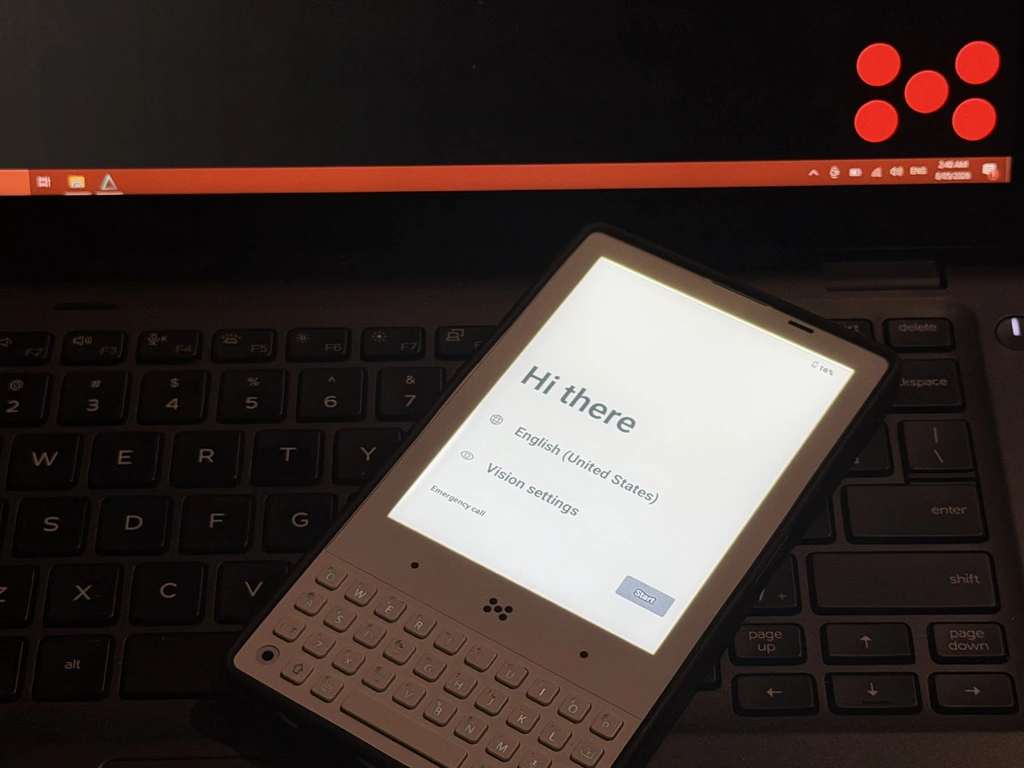
Factory resetting your Minimal Phone
A factory reset wipes all user data on the device and returns it to an "out of the box" state. This can be useful when troubleshooting, before selling or handing off the device, or to clear a bootloop.
This will erase all data on your phone (apps, accounts, messages, files). It cannot be undone.
1. Power off the device
Hold the Power button and select Power off from the menu.
If your phone won't shut down normally (stuck on a boot screen, frozen, or otherwise unresponsive), you can skip this step entirely. Just hold Power + Volume Up together and keep holding through the screen turning off until the Select Boot Mode screen appears in step 2.
2. Boot into the Boot Mode menu
With the device fully off, hold Power + Volume Up together until you see the Select Boot Mode screen.

You'll see three options: Recovery Mode, Fastboot Mode, and Normal Mode. The on-screen hint reads VOLUME_UP to select. VOLUME_DOWN is OK.
- Press Volume Up to cycle through the options until
Recovery Modeis the highlighted row - Press Volume Down to confirm
3. Wait for the "No command" screen
After confirming, the device will show a small Android robot with No command underneath. This is expected.

To progress past this screen:
- Press and hold the Power button
- While still holding Power, tap Volume Up once
- Release both buttons
4. Navigate the recovery menu
You should now see the Android Recovery menu. The header shows Use volume up/down and power.
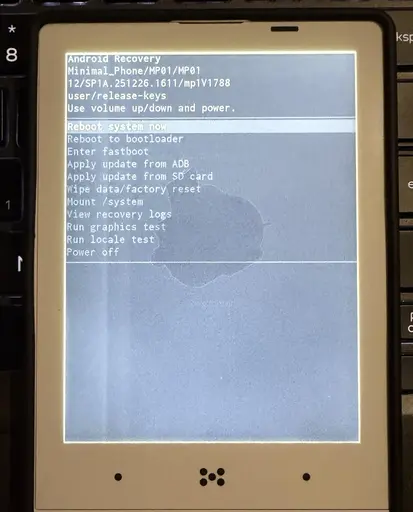
- Press Volume Down repeatedly to move the highlight down to
Wipe data/factory reset - (Use Volume Up if you overshoot and need to move back up)
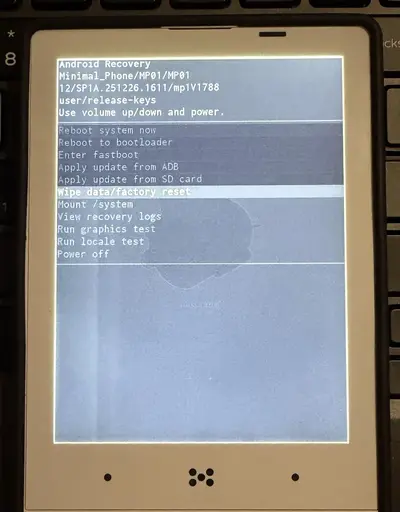
- Once
Wipe data/factory resetis highlighted, press the Power button to select it
5. Confirm the factory reset
A confirmation screen will appear with the warning Wipe all user data? THIS CAN NOT BE UNDONE! and two options: Cancel (highlighted by default) and Factory data reset.
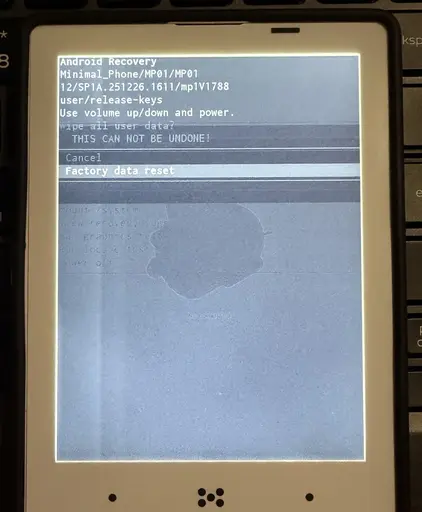
- Press Volume Down once to move the highlight from
CanceltoFactory data reset - Press the Power button to confirm
The device will now wipe its data. You'll see status messages at the bottom of the screen ending with Data wipe complete.
6. Reboot
Once the wipe finishes, the menu returns and Reboot system now is highlighted at the top.
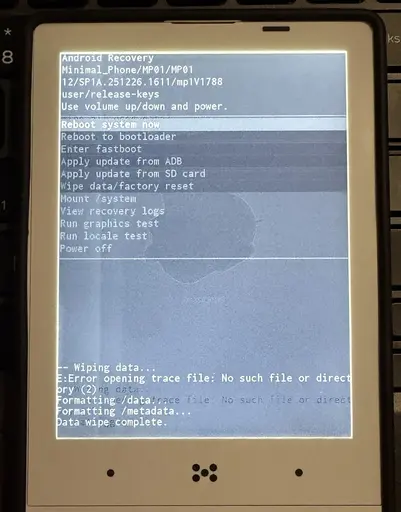
- If
Reboot system nowis not already highlighted, use Volume Up to move back to it - Press the Power button to select it
Your phone will reboot into a fresh setup. The first boot after a factory reset can take a few minutes, please be patient.
Once it finishes, you'll be greeted by the Hi there welcome screen, ready to set up from scratch.