Restoring your IMEI to your Minimal Phone
Restoring your IMEI may be required in some circumstances
- Testing a
debugbuild - After restoring to a
userbuild from adebugbuild - Unbricking your device with
Format All + Download
Requirements
- Modem META installed
- USB A-C cable (C-C can work, but if you experience issues please try a A-C cable)
- Mediatek SoC drivers
- SIM1 & SIM2 IMEI (You can find this on the box or on the sticker that comes with your device)
-
Power off your Minimal Phone
-
Open
Modem META
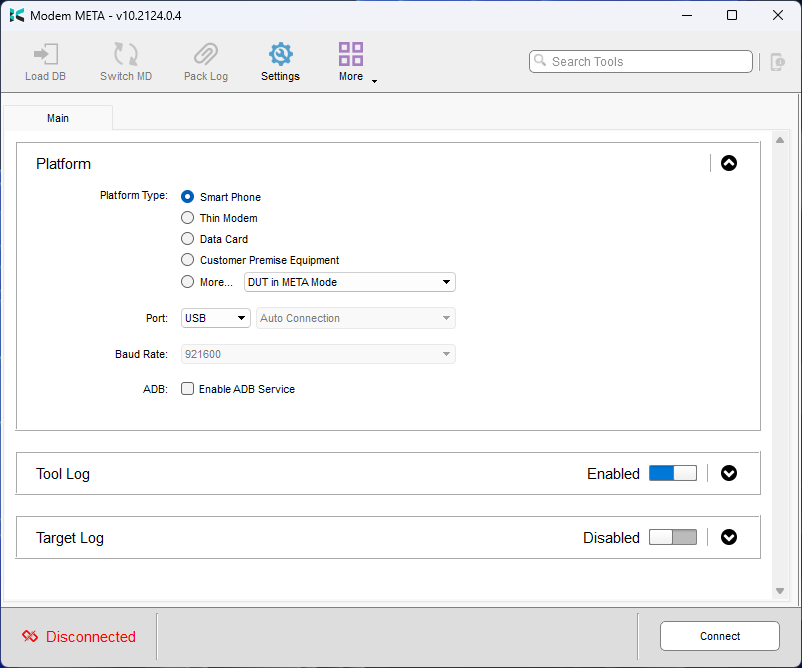
-
Stock options should be okay, click
Connect -
Plug in your Minimal Phone
-
Wait for Modem META to connect to your device, this can take up to 60 seconds
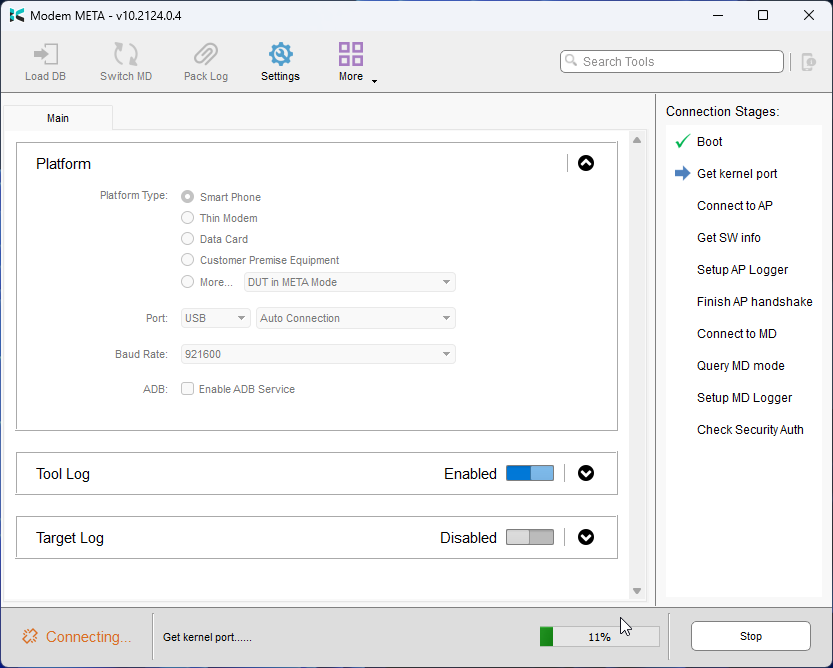
- Once your device is connected you will see a green link icon with
Connected. If there are any warnings you can ignore them.
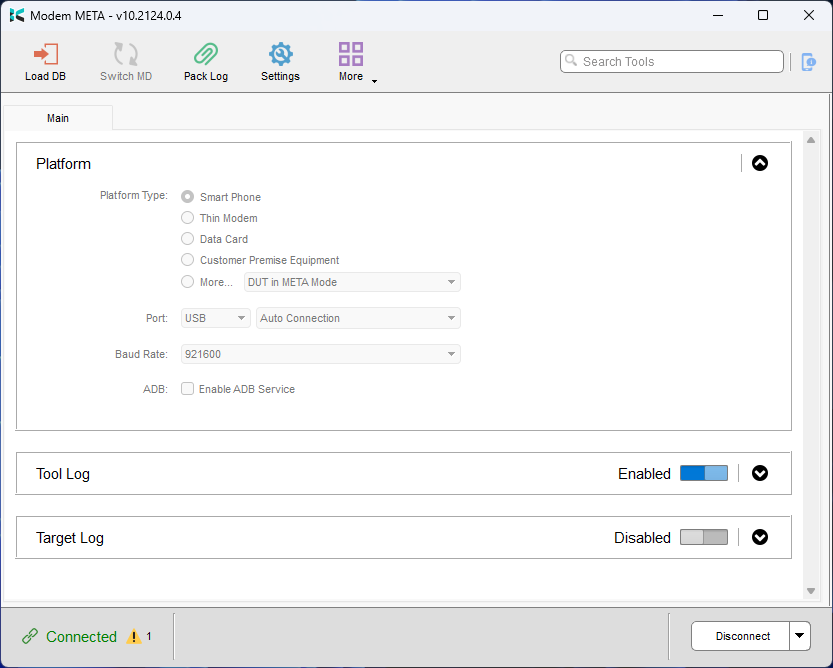
- In the top right corner, use the search bar to search for
IMEI Download

- Select
Read, if prompted selectFrom Target

- You should see
Read IMEI from target successfully

- Double click the field for the IMEI you want to restore and type it in
Please note that it will only let you type in 14 numbers, and the final number will fill in the
Checksumcolumn. (Ensure this is correct)
- You can then write the IMEI to your device by clicking
Write, it should only take a few seconds and you should seeWrite IMEI to target successfully

- Your IMEI is restored! Now close the
IMEI Downloadwindow and clickDisconnectin the Modem META window, and wait forDisconnectedto show
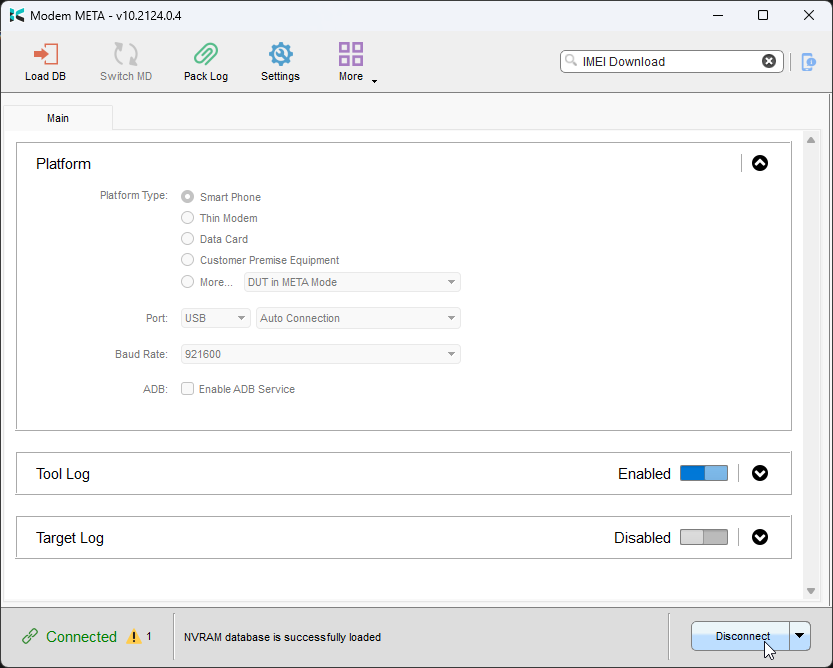
- Unplug and power on your device, you should now be able to connect to a celluar network.
Note
Please note WiFi and Bluetooth MAC addresses shouldn't be affected by this. If either of them are missing ensure WiFi + Bluetooth are enabled and check again.