Windows Driver/Program Setup
Before you can flash builds or restore your IMEI on Windows, you'll need a few programs and the Mediatek drivers installed. This guide walks through the full setup.
What you'll need
- A Windows 10 (or newer) PC
- A USB A-C cable (C-C can work, but if you experience issues please try a A-C cable)
- The following installers downloaded to your PC:
- MTK.Drivers.exe (Mediatek SoC drivers)
- ModemMETA_v10.2124.0.04.exe (used for restoring IMEIs)
- SP.Flash.Tool.v6.2404.zip (used for flashing builds)

1. Install the MediaTek USB VCOM Drivers
Before starting, unplug your Minimal Phone (and any other Mediatek devices) from your PC. The installer will refuse to continue if any Mediatek USB device is connected.
-
Run
MTK.Drivers.exe -
Click
Nextthrough the prompts, leaving the install location at the default

- If you see the
Please remove USB device first. Continue?prompt, unplug your phone and clickYes

- A console window will appear and install a long list of USB device entries. This is normal, let it run to completion.
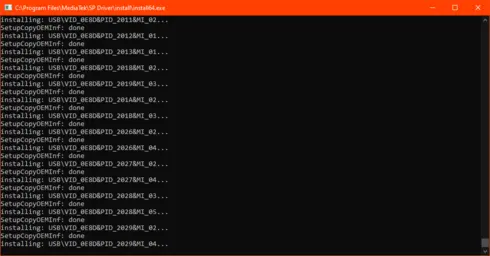
If Windows shows any warnings about driver signature verification during this step, ignore them and allow the install to continue. The Mediatek drivers are unsigned and these warnings are expected.
- When prompted to restart, click
OKbut do not reboot yet, finish the rest of the setup first so you only restart once.

2. Install Modem META
- Run
ModemMETA_v10.2124.0.04.exe

- Click
Next, then leave the destination folder at the default and clickInstall

- When the installer finishes, untick
Run Modem METAand clickFinish

3. Extract SP Flash Tool
SP Flash Tool does not have an installer, it runs directly from its extracted folder.
-
Extract
SP.Flash.Tool.v6.2404.zipto a location of your choice (your Desktop is fine) -
Inside the extracted folder, you'll find
SPFlashToolV6.exe. This is the program you'll launch when flashing.
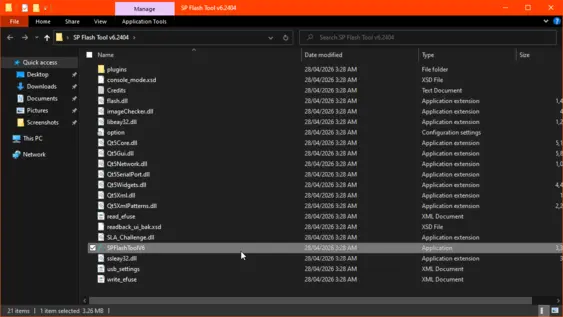
Don't move SPFlashToolV6.exe out of its folder, it depends on the surrounding .dll files to run.
4. Restart your PC
Now that everything is installed, restart your PC to finish the driver installation.
After your PC boots back up, you should have shortcuts for SP Flash Tool and Modem META ready to use.

You're now ready to follow the flashing or IMEI restoration guides.
Troubleshooting
SP Flash Tool or Modem META fails to launch
Both tools depend on the Microsoft Visual C++ Redistributable. If either tool refuses to start or shows a .dll-related error, install the VisualCppRedist AIO bundle, which covers every version both tools may need:
- Run
VisualCppRedist_AIO_x86_x64.exe

- Click
Nextand let it extract

- Wait for Windows to finish configuring it

- Try launching the tool again.
Last resort: disabling driver signature enforcement
If your PC still refuses to load the Mediatek drivers after a restart (e.g. Device Manager shows a yellow triangle next to the device, or Windows blocks the install with a signature error you cannot bypass), you may need to temporarily disable driver signature enforcement and reinstall the SP Driver.
Most users will not need this step, the warnings shown during the normal install are safe to ignore. Only follow this section if the drivers actually fail to load after a reboot.
-
Open
Settings→Update & Security→Recovery -
Under
Advanced startup, clickRestart now
Alternatively, hold
Shiftwhile clickingRestartfrom the Start menu's power options.
-
Once your PC reboots into the recovery menu, select
Troubleshoot→Advanced options→Startup Settings→Restart -
When the Startup Settings menu appears, press
7(orF7) to selectDisable driver signature enforcement -
Once Windows boots, re-run
MTK.Drivers.exe -
Restart normally, the drivers will remain installed, but signature enforcement will turn back on for everything else.