Flashing your Minimal Phone with SP Flash Tool
This guide walks through flashing a build to your Minimal Phone using SP Flash Tool.
Don't unplug the phone or close SP Flash Tool while a flash is in progress. Interrupting a flash can leave the device unbootable.
Requirements
- A Windows PC with drivers and SP Flash Tool installed
- A USB A-C cable (C-C can work, but if you experience issues please try a A-C cable)
- A build extracted to a folder on your PC, containing a
flash.xmlinside itsdownload_agentfolder (factory images are linked from the update posts on our blog) - Your Minimal Phone, with at least some charge
1. Open SP Flash Tool
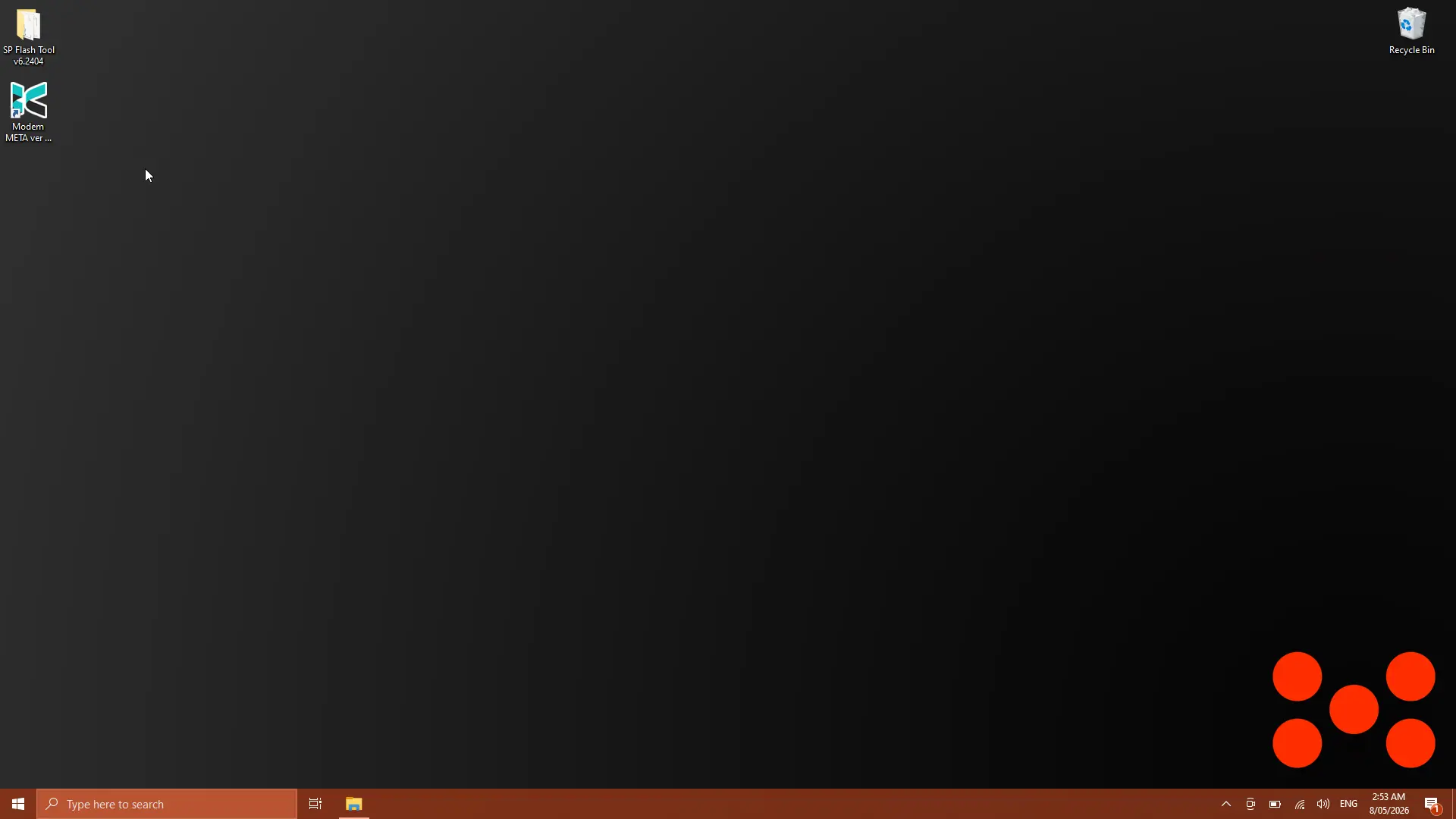
If you completed the Windows setup, you should have a folder for SP Flash Tool and shortcut for Modem META on your desktop.
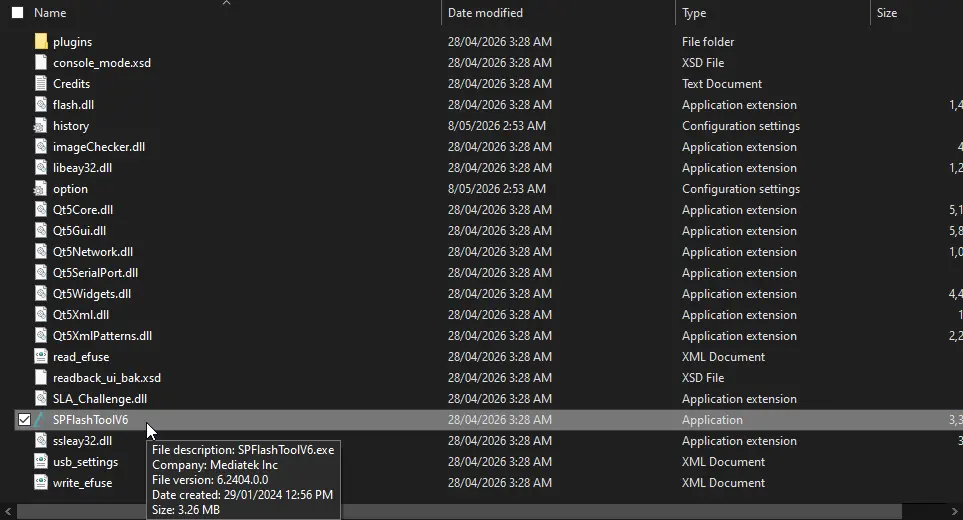
Navigate into the SP Flash Tool folder you extracted earlier and run SPFlashToolV6.exe.
2. Load the flash XML
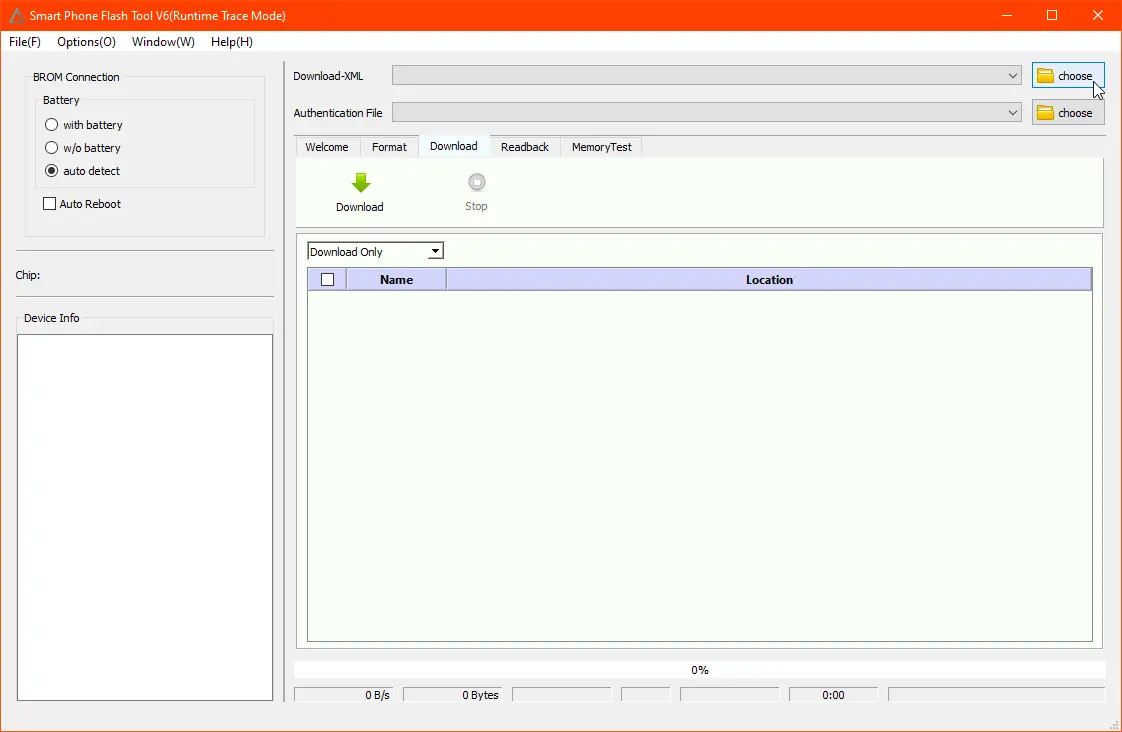
In the top right of the SP Flash Tool window, click the choose button next to Download-XML.
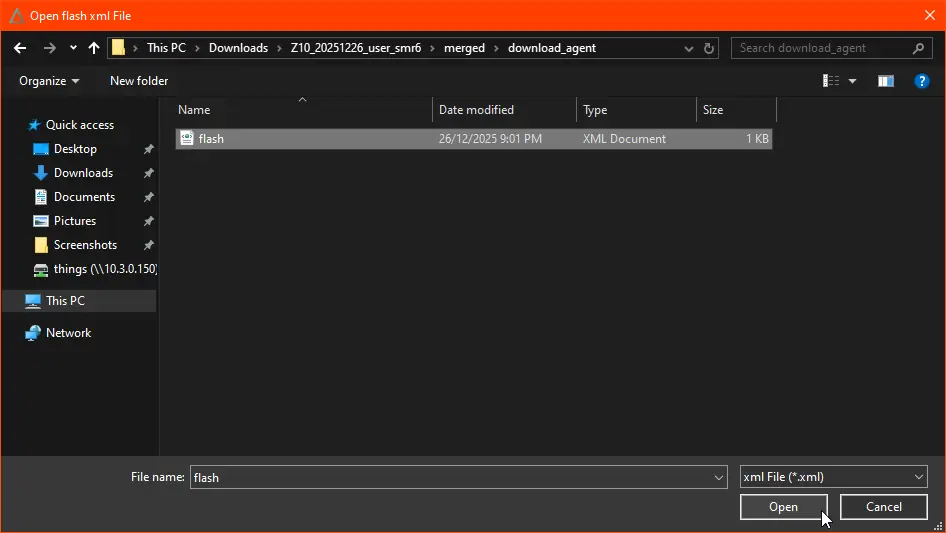
Navigate into your extracted build folder, then into download_agent, and select flash.xml. Click Open.
The file list will populate with the partitions to be flashed.
3. Set the flash mode to "Download Only"
In the dropdown above the file list, ensure Download Only is selected.

Selecting Format All + Download will erase all data on your device, including the IMEI and other calibration data. Using this option is not reccomended, be prepared to restore your IMEI afterwards, there also may be other unforseen consequences.
4. Start the flash
Click the green Download button to arm SP Flash Tool. It will now wait for your phone to connect.

5. Connect your phone
With your Minimal Phone powered off, plug it into your PC using a USB cable.
SP Flash Tool will detect the device. The chip will be identified as MT6789, the Device Info panel on the left will populate, and the progress bar at the bottom will turn yellow as flashing begins.
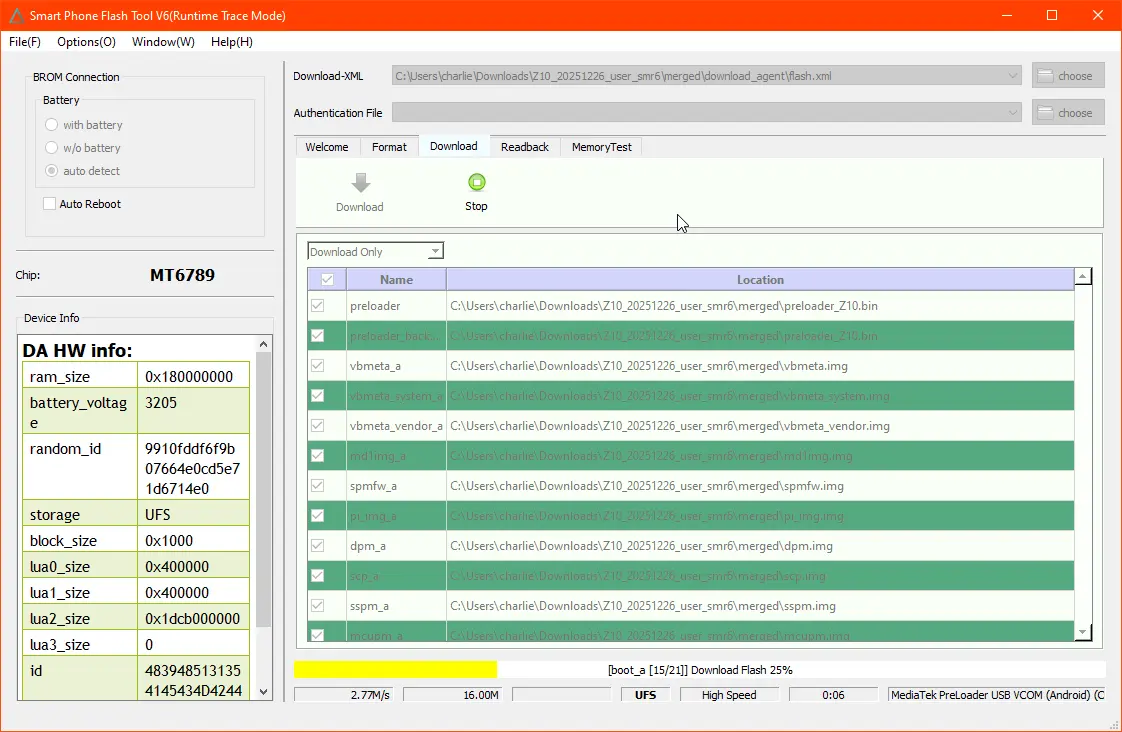
Don't unplug the phone or close SP Flash Tool until the flash completes.
6. Wait for completion
When the flash finishes, a Download Ok dialog with a green checkmark will appear.
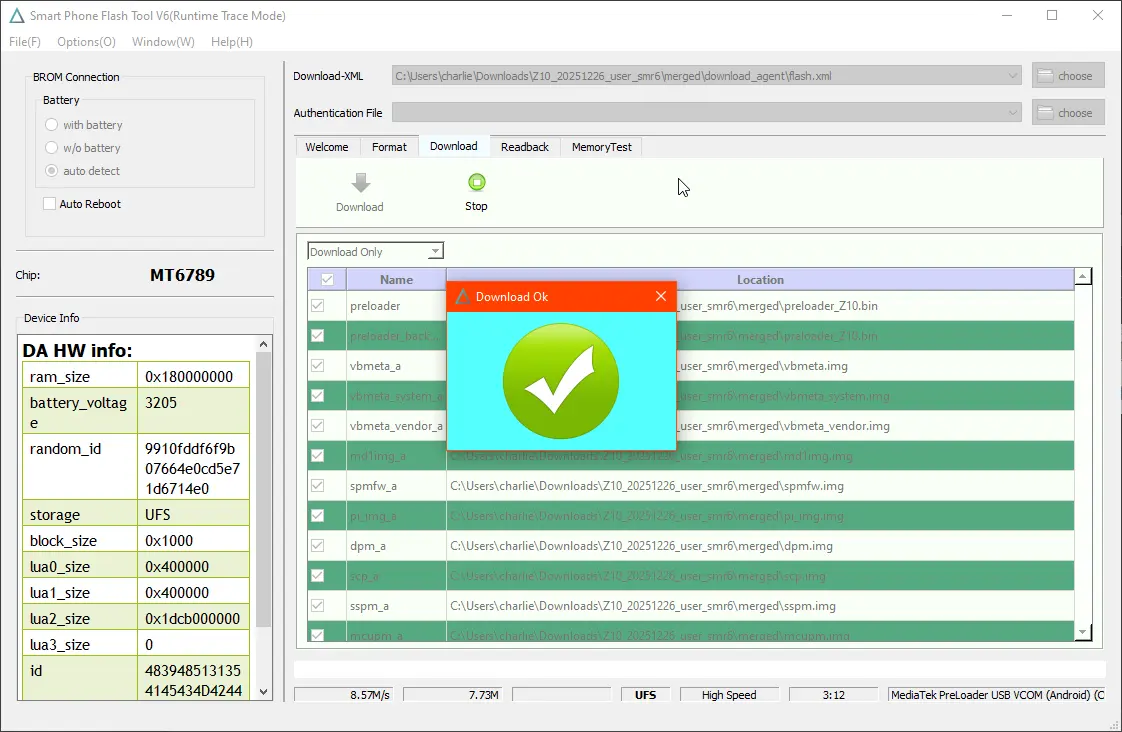
You can now unplug your phone and power it on by holding the power button.
If everything went well, you'll be greeted by the Hi there welcome screen, ready to set up from scratch.
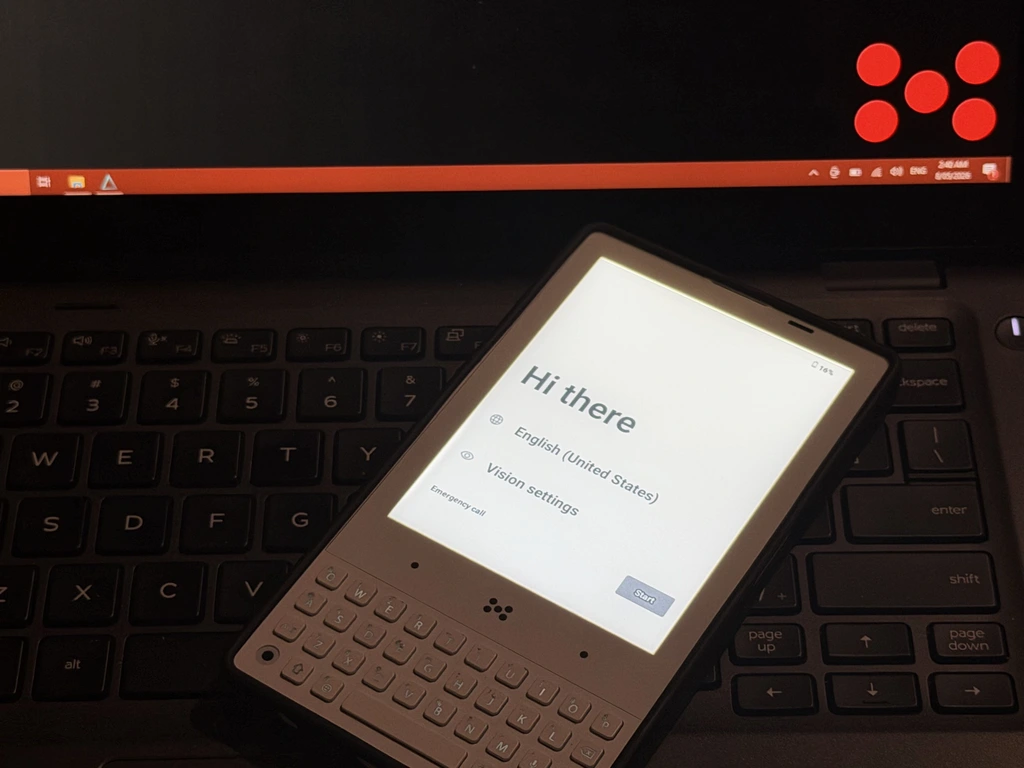
If you used Format All + Download, follow the IMEI restoration guide before connecting to a cellular network. Future guides will show how to backup the NVRAM and other sensitive partitions first before Formatting your device.